


Do you dream of a wireless workspace free from the tangle of multiple USB receivers? Are you a Logitech enthusiast with a growing collection of wireless devices like keyboards, mice, and more? If so, you’re not alone. The struggle for precious USB ports and the constant need to switch between multiple receivers can be a real productivity killer.
But fear not, Logitech’s innovative Unifying technology system offers a powerful solution! This article delves into the world of the Logitech Unifying receiver, a tiny USB dongle that holds the key to connecting multiple Logitech devices to your computer using a single receiver. Imagine the freedom of a clean, clutter-free desk where a single Unifying receiver seamlessly connects your compatible Logitech devices, eliminating the need for multiple receivers and limited USB ports.
This guide will equip you with all the knowledge you need to harness the power of Logitech Unifying. We’ll explore the benefits of using a Unifying receiver, identify compatible devices, give instructions and walk you through the simple connection process using the Logitech Unifying software. Get ready to ditch the cable clutter, streamline your workflow, and experience the hassle-free convenience of Logitech Unifying.
Logitech Unifying Receiver: Technical Specifications
The Logitech Unifying Receiver offers a streamlined solution for connecting multiple Logitech devices to your computer using a single USB port. Here’s a detailed breakdown of its technical specifications:
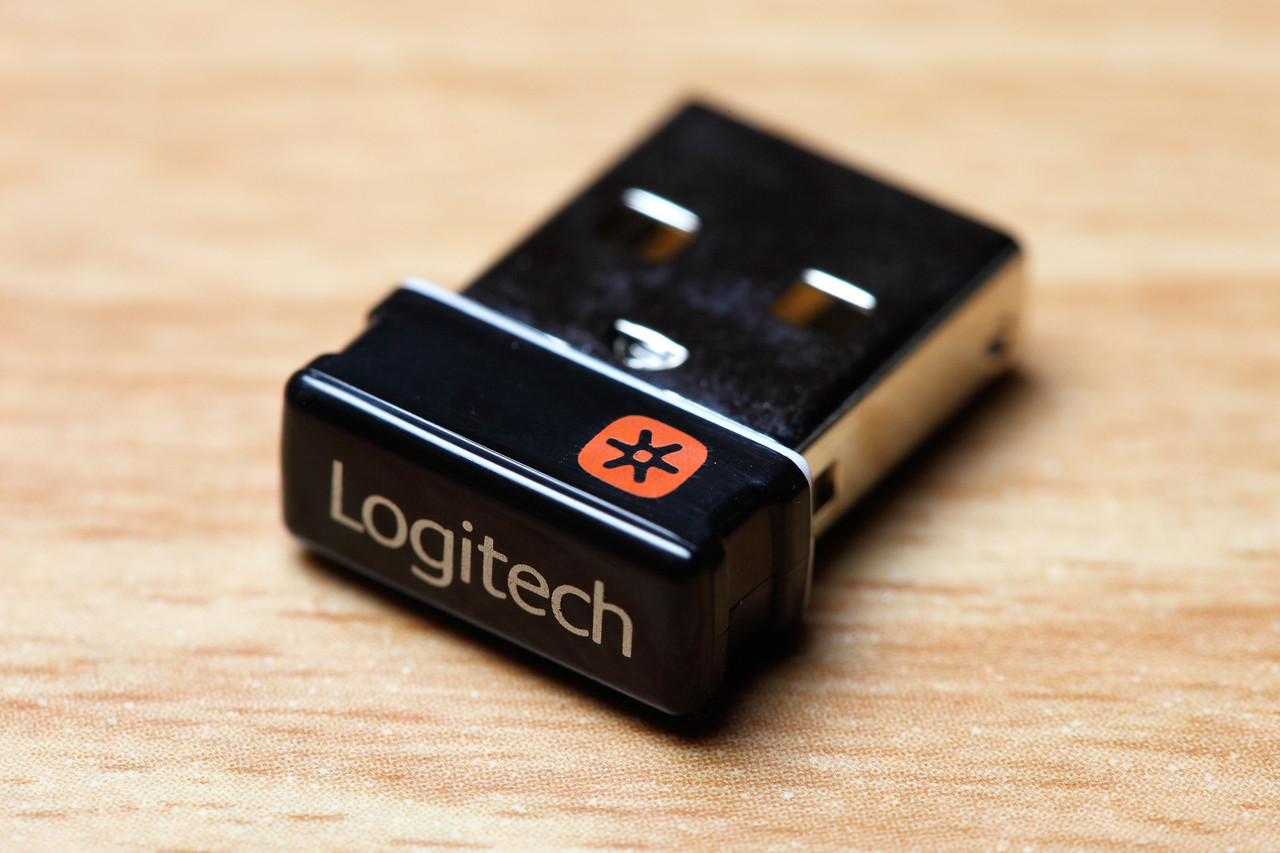
Interface: USB Type-A
Compatibility: Designed to connect and work seamlessly with a wide range of Logitech Unifying-compatible devices, including keyboards, mice, trackballs, presentation remotes, and more. Look for the designated Unifying logo on the device or its packaging to ensure compatibility.
Supported Devices: Up to six compatible Logitech devices can be connected to a single Unifying receiver, fostering reliable wireless connection, a clutter-free workspace and efficient management.
Wireless Technology: Employs 2.4 GHz radio frequency, providing a dependable and robust wireless connection with a typical range of up to 10 meters (33 feet). However, it’s important to note that range can be impacted by the presence of walls, windows and other obstacles in the environment.
Software: Initial device pairing and subsequent management of connected devices require the Logitech Unifying software. This software is readily available for free download from the official Logitech website and offers compatibility for logitech products with both Windows and macOS operating systems.
Dimensions: The compact and lightweight design of the receiver (approximately 15mm x 9mm x 6mm or 0.59 x 0.35 x 0.24 inches) ensures a convenient and unobtrusive addition to your computer setup.
Power Source: The receiver draws power directly from the connected USB port on your computer, eliminating the need for separate batteries.
Security: The Logitech Unifying receiver prioritizes security by utilizing 128-bit AES encryption, guaranteeing secure communication between your devices and the receiver.
Replacement Options: Replacement receivers are often available for purchase on the Logitech website or through authorized retailers. It’s crucial to remember that replacement receivers might necessitate re-pairing with your existing devices using the Logitech Unifying software.
Reference for Latest Specifications: To access the most recent and accurate technical specifications, it’s highly recommended to consult the official Logitech product page for the specific Unifying receiver or keyboard model you’re interested in. This ensures you have the most up-to-date information.
Download Logitech USB Unifying Receiver Software
Logitech software has a simple and understandable interface where you can easily find the needed options and customize compatible devices for better performance. Create preset controls, switch between the devices, fix minor issues, and save your settings for multiple users. When you access the widget, you will be able to control all devices at once, by simply selecting them in the menu. You can achieve this with a single unifying receiver.
To ensure you download the correct Logitech drivers, Check the specifications of your devices and make sure the downloadable drivers match your operating system. Choose the needed link and click on it to start the download.
Choosing a Logitech software version that matches your operating system is important. For example, if you need Logitech controller drivers for 64-bit Windows 11, you should search for the exact version of this model.
Logi Options + driver installation for Windows is performed through the control panel, where you find the device manager and click on it. After that, you select the keyboard or the mouse, select the driver installation option, and follow the instructions. The control panel can be accessed through the start menu. Ensure a single receiver is connected and start installing Logitech Unifying Software
To install Logitech unifying software on Mac OS, right-click on the downloaded file and select “Show Package Contents.” Navigate to Resources and double-click on LogiMgr.pkg.
Logitech unifying software installation doesn’t take long and allows you to unlock the full potential of your devices and control them with the help of a unifying USB receiver. Moreover, the software doesn’t require much space on hardware. Ensure your USB port works before connecting the device, and start the installation.
Optimizing Your Unifying Workflow: The Advantages of Logitech Unifying Software
The Logitech Unifying USB receiver stands as a testament to efficient wireless connectivity. This innovative hardware solution allows users to connect multiple Logitech wireless devices to a single USB receiver, fostering a streamlined and clutter-free workspace. However, the true potential of Unifying technology is unlocked through the accompanying Logitech Unifying software program. This complimentary software program acts as the centralized management hub for your Unifying ecosystem, offering a suite of functionalities that enhance user experience and optimize workflow efficiency.
Effortless Device Management and Seamless Pairing:
The Logitech Unifying software eliminates the complexities often associated with pairing and managing multiple wireless devices. Traditional setups frequently necessitate individual software programs for each device, leading to a cluttered user experience. Unifying software simplifies this process by providing a centralized interface for pairing new devices with your existing Unifying receiver. This intuitive software streamlines device management, saving valuable time and reducing potential user frustration.
Unlocking the Full Potential of Your Logitech Devices:
Many wireless devices offer limited functionality out-of-the-box. Logitech’s Unifying software empowers users to customize their experience and maximize the value of their Logitech peripherals. The software allows for granular control over keyboard settings, enabling users to assign specific functions to individual keys, tailoring them to their unique workflow demands. Similarly, users can adjust mouse settings for enhanced precision and control, optimizing their human-computer interaction. This level of customization ensures that Logitech devices seamlessly integrate into individual workflows, fostering increased productivity.
Enhanced User Experience with Proactive Battery Monitoring:
The Unifying software extends its functionality beyond device management by providing valuable battery level monitoring. This proactive feature keeps users informed about the battery status of their Unifying-compatible devices. By displaying battery levels within the software interface, users can anticipate battery replacements, preventing unexpected interruptions during critical tasks. This eliminates the need for last-minute scrambling to wait for batteries, ensuring a smooth and uninterrupted workflow.
Advanced Features for Power Users:
For users who demand even greater control and customization, the Unifying software offers a range of advanced features. These functionalities cater specifically to power users who require maximum efficiency from their Logitech devices. Users can create custom macros to automate repetitive tasks, streamlining complex actions with a single keystroke. Additionally, activity profiles allow users to configure their devices for specific tasks. For example, a user could create a “productivity profile” for work and a “gaming profile” for leisure, ensuring optimal device performance for each scenario. These advanced functionalities empower users to tailor their Unifying ecosystem to their exact needs.
Future-Proofing Your Wireless Experience:
The Logitech Unifying software is designed for long-term compatibility. Regular software updates ensure that your Logitech devices remain optimized and function flawlessly with the latest operating systems. This commitment to future-proofing guarantees a smooth and reliable user experience for years to come, protecting your investment in multiple Logitech wireless devices and peripherals.
Unifying Software: An Essential Component for a Streamlined Workflow
The Logitech Unifying software is more than just an optional add-on; it’s an essential tool for maximizing the potential of your Unifying ecosystem. With its intuitive interface, effortless pairing, customization options, and advanced features, the software empowers users to manage their devices effectively, enhance functionality, and create a personalized wireless experience. By leveraging the full capabilities of the Unifying software, users can unlock the true potential of their Logitech devices and achieve a more efficient and productive workflow.
? Logitech USB Unifying Receiver — Software and Driver FAQ
What specific software is required to pair a new device to the Unifying Receiver?
To link a new compatible mouse or keyboard to a Unifying Receiver, you must download and run the dedicated Logitech Unifying Software. This utility handles the pairing process, which allows up to six devices to connect to a single receiver, and is separate from the customization applications like SetPoint or Logi Options+.
Do I need Logi Options+ or SetPoint software for the Unifying Receiver to work?
The receiver will function for basic mouse and keyboard movement (Plug and Play) without Logi Options+ or SetPoint. However, these customization applications are necessary to configure advanced device features, such as reassigning mouse buttons, setting application-specific functions, checking device battery levels, and utilizing the Logitech Flow feature across multiple computers.
Why is it important to update the Unifying Receiver’s firmware?
The Unifying system uses 128-bit AES encryption to ensure secure communication between the receiver and your devices. Updating the firmware is essential because it applies the latest security patches to address vulnerabilities and ensures that the wireless connection remains stable, efficient, and protected against potential interference or exploits.
Tip: Click a question to expand the answer.

 (1 votes, average: 1.00 out of 5)
 Loading...
