


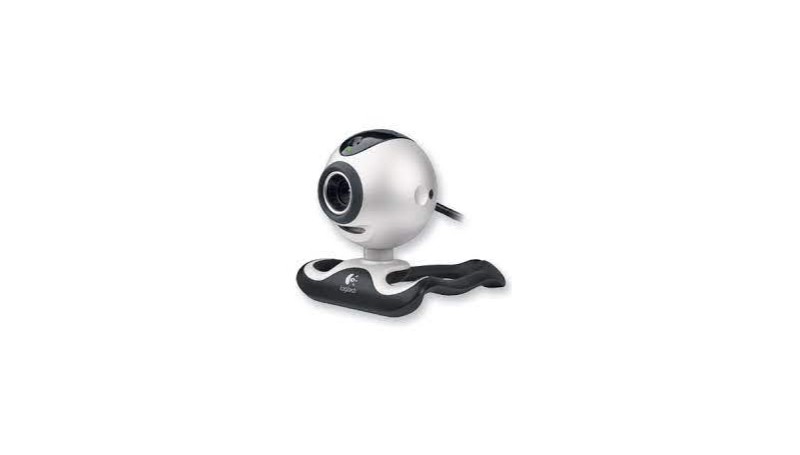
The Logitech QuickCam Pro 4000 webcam, while no longer cutting-edge, offered a decent solution for video calls and capturing basic photos in the early 2000s. Featuring a 1.3 megapixel sensor, it captured images with a maximum resolution of 1280 x 960 pixels, exceeding the capabilities of many webcams at the time. This provided a slightly sharper image quality compared to its contemporaries. The VGA CCD sensor ensured reasonable video quality for video conferencing or casual recordings.
The QuickCam Pro 4000 also boasted a digital zoom, allowing you to adjust the framing of your video feed, and a built-in microphone for capturing audio during calls. Software integration with popular instant messaging applications like Yahoo! Messenger and MSN Messenger further enhanced its usability.
Overall, the Logitech QuickCam Pro 4000 was a solid mid-range webcam option in its era, offering improved image quality over basic webcams and features like digital zoom and microphone integration for a more well-rounded video conferencing experience. However, with the significant advancements in webcam technology, it would likely be outperformed by most modern webcams in terms of resolution, image quality, and overall feature set.
Logitech QuickCam Pro 4000 Specifications
While not the latest technology on the market, the Logitech QuickCam Pro 4000 webcam served as a decent solution for video calls and capturing basic photos in the early 2000s. Let’s explore its specifications:
- 1.3 Megapixel Sensor: Captured images with a maximum resolution of 1280 x 960 pixels, offering slightly sharper image quality compared to many webcams of its era.
- VGA CCD Sensor: Provided reasonable video quality for video conferencing and casual recordings. (VGA resolution refers to 640 x 480 pixels).
- Digital Zoom: Allowed for adjusting the framing of your video feed, bringing you closer to the image or providing a wider view.
- Built-in Microphone: Captured audio during video calls, eliminating the need for a separate headset.
- Software Integration: Worked with popular instant messaging applications like Yahoo! Messenger and MSN Messenger for easy video chat functionality.
- USB Connection: Standard USB connection for easy integration with most computers.
Benefits of Logitech QuickCam Pro 4000 Driver Update
Compatibility Issues: Outdated generic drivers, in rare cases, might cause minor compatibility issues with your specific operating system or computer. Updating the drivers could resolve these issues, such as erratic keystrokes, scroll wheel malfunction, or incorrect multimedia key functionality.Bug Fixes: In even rarer cases, Logitech might release firmware updates (not driver updates) for the MK470 through its support website. These updates are highly unlikely and would likely focus on addressing minor bugs within the keyboard or mouse itself, not adding new features.
Download Logitech QuickCam Pro 4000 Software
At our website, we are committed to providing you with the best possible experience when it comes to your Logitech devices. That’s why we offer a wide range of free driver and software for Windows 10 and Windows 11, and Mac OS to ensure that your Logitech devices run smoothly and function optimally.
Whether you’re using a Logitech gaming keyboard, webcam, speaker, or any other Logitech device, we have the drivers and software you need to get the most out of your device. Our selection includes everything from basic drivers to advanced software that allows you to customize your Logitech devices to your liking.
Downloading drivers and software from our website is incredibly easy and convenient. Simply browse through our selection and choose the driver or software that’s right for your device and operating system. Then, click the download button and wait for it to be downloaded to your computer or laptop.
One of the benefits of downloading drivers and software from our website is that they are completely free. You don’t have to worry about any hidden fees or charges – all of our drivers and software are available for download at no cost to you.
Boost Your Device With Logitech QuickCam Pro 4000 Software
By keeping your drivers updated, you can ensure your QuickCam Pro 4000 operate at their full potential, delivering the clear, powerful audio you deserve. With a few simple steps, you can optimize your listening experience and enjoy your music, movies, and games to the fullest.
Unlike some other services that share downloadable software, we don’t ask visitors to share personal data, create accounts, and somehow verify them or even pay for the download. Our service is 100% free and safe. Our specialists check all the files to ensure there are no dangerous files in there. Moreover, if there’s something you don’t understand, clarify it by contacting customer support representatives. They will answer all your questions and give you all the information about the drivers for the Logitech QuickCam Pro 4000.
? Logitech QuickCam Pro 4000 — Driver and Software FAQ
What software is needed to use the QuickCam Pro 4000’s advanced features?
The QuickCam Pro 4000 originally required the Logitech Webcam Software (LWS) or Logitech ImageStudio software. This proprietary software was essential to access advanced features like the 1.3-megapixel still image capture, digital zoom, motion detection, and face tracking. Without the dedicated software, the webcam operates only at basic video resolution.
Does the webcam work with the generic drivers included in Windows 10/11?
For basic functions, the webcam is often recognized by Windows 10 or 11 as a generic USB Video Device and will use a generic driver. However, this method will not install the necessary components for the full suite of features and may limit the device to lower resolutions and frame rates. Many users find that the official, though older, drivers provide better stability and quality.
What is the best way to install the QuickCam Pro 4000 driver on a modern Windows PC?
The most reliable method involves manually installing the driver. First, download the last driver package (usually for Windows Vista/7). Then, locate the executable file, right-click, and run it in “Compatibility Mode” for an older Windows version. If the installer fails, some users find success by manually extracting the driver files and pointing the Device Manager to the extracted folder to force the driver installation.
Tip: Click a question to expand the answer.

 (1 votes, average: 1.00 out of 5)
 Loading...
