


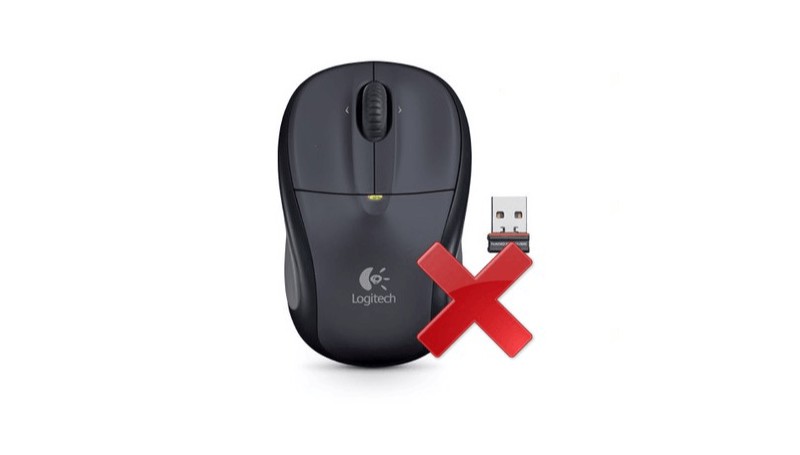
Whether you are in the game, in the working session, or just scrolling the feed, you have to use the mouse to switch between the pages, engage with the application, and perform other operations. Of course, sometimes people prefer to use a mouse pad, but a classic mouse is always in preference. Sometimes, it happens because people don’t use updated driver software or don’t install drivers at all. With it, they don’t have a chance to fix errors and get back to normal work.
Still, there is no problem that can’t be resolved, and if your Logitech wireless mouse is not working properly, it’s not a disaster. You only need to know the common reasons why the device is not working to understand what can be done to fix it. So, let’s dive in and find out what to do if your Logitech mouse not working.
My Logitech mouse not working because of the low battery
One of the most common reasons the Logitech mouse stops working is the low battery level. If the battery level is critical and directly impacts its efficiency, the device gives a signal. Also, if you have access to the device manager, you will see a specific notification about the low battery level. In this case, consider removing the battery from your Logitech mouse and recharging it. It will disable your wireless mouse for some time, but it’s a necessary move. Still, it will help you avoid power issues in the future, so you will ensure your mouse works properly with a full battery charge.
The mouse is not working because of the USB port issues
Still, if you can connect your device both ways (wired and wireless), use the cable and change the USB port. Once your device is connected via a different port, check the connection and try to do something using your mouse. Open the device manager and check whether your computer sees the Logitech wireless mouse and whether it works or not. If it works, it means a problem is fixed.
How to establish Logitech wireless mouse connection issues? reinstall the software
Another reason why the wireless mouse is not working is because Logitech software is not working or has issues. People often panic because they don’t know what to do in such cases. Still, there is a simple decision that can help you establish a Bluetooth connection and get back on track. So, here’s what you need to do to fix the Logitech wireless mouse connection:
- Access the device manager and find the mouse driver.
- Uninstall the mouse driver via the widget.
- Go to our website and find the software model that matches the model of your Logitech mouse device. Ensure you select the model that matches your operating system (Windows or Mac OS).
- Download it and access the start menu. Install the drivers and restart your PC. Ensure your mouse is connected to the software and try to adjust it.
If you do everything right, you will likely resolve the problem of your Logitech mouse not working. Moreover, you will be able to access extended settings and adjust the device the way you want. The only thing that matters is that you should use the latest version of the software.
How to connect a Logitech mouse to a Mac Book?
Another important question concerns connecting the Logitech mouse to the Macbook. People think that this process usually differs from what you have on Windows. So, to connect your Logitech wireless mouse to your Macbook, do the following:
- Turn on the Bluetooth connection and ensure your mouse is pairing with the computer.
- Access the “System Preferences” app on the computer
- In the list of options, find Bluetooth
- In the “Devices” category, find your mouse. Click on the “Connect” button.
- Once the device is connected, you will receive the specific notification and be able to use your Bluetooth mouse.
As you see, there’s nothing complicated in connecting your device to the Macbook. Whether you have an optical mouse or another device, the process won’t differ a lot. If you already have software installed on your desktop computer, you will have access to additional features and options. Mouse drivers are easy to use, so you won’t have any issues adjusting and controlling your device. In case something is wrong, feel free to contact Logitech support. With additional information, you’ll know how to fix your Logitech mouse not working.
Where do you find the latest drivers for the mouse?
In order to make your device work properly, you need the latest drivers. Still, there’s no clear answer about where to find it. There are dozens of fake web pages that allow people to download drivers for different devices from Logitech. Still, to do this, they have to pay or create a profile on the website, leaving their personal data. It looks strange and unsafe, especially on unverified pages. Still, people are ready to do everything to make their mouse work, which is often the wrong approach. There is a better way to fix your Logitech mouse not working.
On our website, you will find all the needed driver updates for all Logitech devices, including wired and wireless mice. We offer users to download software for any operating system for free. Moreover, you don’t need to share personal data. Open the device list, find out the Logitech mouse software related to your model, select the version that matches your OS, and click on the link. If you need to update drivers, you can remove the old version from your computer and replace it with a new one. Outdated drivers won’t help you resolve the problem of the mouse not working, so you’ll have to replace the software completely. Access our website, find the needed mouse driver, and install it to fix your Logitech mouse not working.
 (No Ratings Yet)
 Loading...
