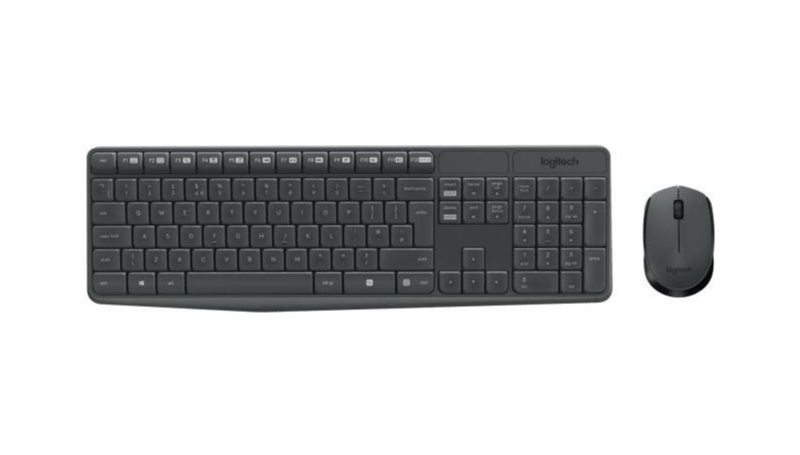
Logitech mice and keyboards are upgradeable. All you need to do is download the drivers for your model. One of the most popular models is the Logitech MK235. It is a popular mice and keyboard combo that can be greatly enhanced with Logitech software for Windows and macOS.
The downloadable Logitech MK235 combo drivers are compatible with Windows 11, Windows 10, and macOS. The software makes it easy to customize, repair, and extend the functionality of your MK235 combo.
Logitech MK235 Specifications
The Logitech MK235 is a popular wireless keyboard and mouse combo known for its durability and affordability. It’s a perfect choice for those seeking a hassle-free wireless desktop setup. Here’s a breakdown of its key specifications:
Wireless Connectivity: Say goodbye to cable clutter! The MK235 utilizes a 2.4 GHz wireless connection with a nano USB receiver for a reliable and lag-free connection. This tiny receiver plugs into a USB port on your computer, eliminating the need for bulky Bluetooth dongles.
Long Battery Life: Both the keyboard and mouse boast impressive battery life. The keyboard can last up to 36 months on a single set of AAA batteries, while the mouse can run for up to 12 months on a single AA battery (battery life may vary depending on usage).
Comfortable Design: The MK235 keyboard features low-profile keys with a membranous keystroke for quiet and comfortable typing. The mouse offers a contoured design for comfortable grip during extended use.
Durable Build: The MK235 is built to last. The keyboard features spill-resistant keys, and the entire combo is designed to withstand everyday wear and tear.
Plug-and-Play Simplicity: Setting up the MK235 is a breeze. Simply plug the nano USB receiver into an available USB port on your computer, and both the keyboard and mouse will typically install the necessary drivers automatically (on most operating systems) using Windows Update.
Compatibility: The MK235 is compatible with a wide range of operating systems, including:
Windows 7, Windows 8, Windows 10 (using Windows Update)
macOS (no additional drivers typically needed)
Chrome OS (no additional drivers typically needed)
Linux (basic functionality, additional driver installation might be required for advanced features)
Additional Considerations:
While the MK235 works well with most USB ports, some users in online communities (like subreddits) have reported interference issues with USB 3.0 ports. If you experience such issues, consider using a USB extension cable to position the receiver further away from other USB devices.
The MK235 uses a dedicated USB receiver, not Bluetooth. While Bluetooth keyboards and mice offer cable-free convenience, they might have higher latency compared to the reliable 2.4 GHz connection of the MK235.
For detailed information on assembly, troubleshooting, or advanced features, refer to the user manual included in the packaging.
The Logitech MK235 is a reliable and affordable wireless keyboard and mouse combo. It offers a comfortable typing experience, long battery life, and durable build quality. Its plug-and-play simplicity makes it a great choice for Windows PCs, Macs, and Chromebooks. While Linux compatibility might require some additional driver setup, the MK235 remains a versatile choice for various desktop setups.
We hope this information helps you decide if the Logitech MK235 is the right fit for your wireless keyboard and mouse needs!
Downloading Logitech MK235 Software
Want to download the Logitech software? It’s easy! It makes it easy to find the options you need and customize your device for better performance.
To download the right driver for your Logitech device, identify your model and make sure the drivers you download are compatible with your operating system. For example, if you need controller drivers for 64-bit Windows 11, look for the version for that model. Next, click the Download button and wait for the download to complete.
Logitech Logitech MK235 driver for Windows 10
You will then need to install the Logitech MK235 drivers. In Windows, this can be done through the Control Panel: go to the Device Manager. Then select the device, choose the option to install the driver and follow the instructions.
Logitech Logitech MK235 driver for Windows 11
Windows 11 often has built-in drivers for many peripherals. Before seeking a specific driver, check if Windows Update can automatically install the required driver.
Go to Settings > Windows Update > Check for updates.
Install any available updates and restart your computer if necessary.
Once you have downloaded the driver:
Locate the downloaded file, usually in your Downloads folder.
Double-click the file to run the installer.
Follow the on-screen instructions to complete the installation.
Restart your computer if prompted.
Logitech MK235 driver for macOS
To install the Logitech drivers on macOS, right-click on the downloaded file and select “View Package Contents”. Go to the Resources section and double-click LogiMgr.pkg.
Installing the Logitech drivers will take no time at all and will allow you to get the most out of your device.
There are a few potential benefits to keeping the drivers updated:
Limited Bug Fixes : While uncommon, driver updates could address minor bugs that might be impacting the functionality of your MK235. These fixes could resolve issues like unresponsive keys, malfunctioning connection with the USB receiver, or compatibility conflicts with specific software.
Maintain Functionality: In rare cases, a driver update might be required to ensure continued proper functionality of the keyboard and mouse. This is more likely if you’re using an older operating system.
By keeping your drivers updated, you can ensure your MK235 functions smoothly for a reliable basic typing and mouse experience.
Boost Your Device With Logitech MK235 Software
The Logitech MK235 is a wireless keyboard and mouse combo focused on simplicity and affordability. It delivers a reliable connection, comfortable typing, and long battery life, without needing extra software for most users. While Logi Options Plus software offers some customization options for compatible Logitech devices, it’s not essential for the MK235’s core functionality. If you value a hassle-free wireless setup, the MK235 is a great choice. For advanced customization needs, explore other Logitech options with more robust software support. Unlike some other services that share downloadable software, we don’t ask visitors to perform additional actions to perform the needed operations. Our service is 100% free and safe. We make everything pretty simple, as users don’t need to create accounts, share their personal data, or pay for the downloads. You won’t damage your system because our specialists delete all dangerous files.
?
Logitech MK235 Driver & Software — FAQ
Where can I download the Logitech MK235 driver and software?
+
You can download the official drivers and software for your Logitech MK235 keyboard and mouse from our website, https://plugdriver.com/. We provide the latest versions to ensure optimal performance and compatibility with your operating system.
How do I install or update the Logitech MK235 driver?
+
Once you’ve downloaded the driver file from https://plugdriver.com/, locate the downloaded file (usually in your “Downloads” folder) and double-click it to start the installation wizard. Follow the on-screen instructions to complete the installation. If you’re updating an existing driver, the installer will typically overwrite the older version. For best results, restart your computer after the installation is complete.
I’m having trouble with my Logitech MK235. Could it be a driver issue or compatibility problem?
+
If your Logitech MK235 isn’t functioning correctly, a driver issue or compatibility problem is a common cause. First, ensure you have the correct and latest driver installed by visiting https://plugdriver.com/ and downloading the driver specific to your operating system. If you’ve recently updated your OS, you might need a new driver version. You can also try uninstalling the existing driver from your Device Manager and then reinstalling the latest version from our website. If problems persist, try connecting the device to a different USB port to rule out a hardware issue with the port itself.
Plugdriver is a team of enthusiasts dedicated to providing comprehensive resources and guidance about different products, including keyboards, mice, headsets, and more. We offer detailed articles, product insights, and easy access to the latest drivers for your devices.





 Loading...
