


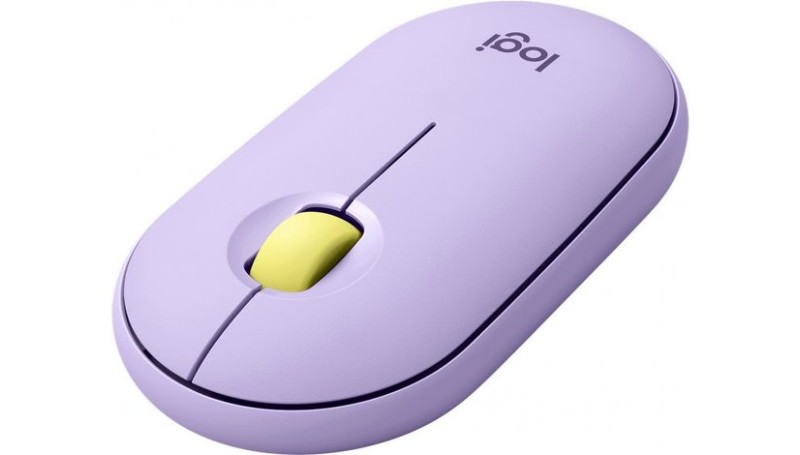
Logitech Pebble M350 — Minimalist, Modern, and Silent
The Logitech Pebble M350 is a standout portable mouse designed for those who value aesthetics and quiet productivity. Its slim, pebble-shaped design fits naturally in the palm of your hand and slides easily into any laptop bag or pocket. The defining feature is its 90% noise reduction on click sounds, making it the perfect companion for working in libraries, coffee shops, or shared office spaces without distracting others.
To get the most out of your M350, installing the Logi Options+ software is highly recommended. While the mouse is ready to use via Bluetooth or the 2.4 GHz USB receiver, the software allows you to monitor battery life, customize the middle button for specific shortcuts, and ensure the firmware is up to date for the most stable wireless connection across Windows and macOS.
Technical Specifications & Capabilities
- Sensor Tech: High Precision Optical Tracking
- DPI Range: 1000 DPI (Fixed)
- Buttons: 3 (Left/Right, Scroll Wheel)
- Battery: 1x AA (Up to 18 months)
- Wireless: Dual (Bluetooth + 2.4GHz USB)
- Silence: 90% Click Noise Reduction
- Range: 10 meters (33 feet)
- Dimensions: 107 x 59 x 26.5 mm
- Weight: 100g (including battery)
- Compatibility: Win 10/11, macOS, iPadOS, ChromeOS
Download Logitech Pebble M350 Driver & Logi Options+
Get the latest official software to manage your device. Logi Options+ provides the necessary tools to check battery status and optimize the connection for professional workflows.
Product Support & Details
- Brand: Logitech
- Model: Pebble M350 / M350S
- Status: Driver Verified ✅
- Connectivity: Bluetooth & USB Unifying
- Battery Level: Monitored via Software
- Software: Logi Options+ (Recommended)
? FAQ
How do I switch between Bluetooth and USB connection?
The button on the bottom of the mouse allows you to toggle modes. A Blue light means you are in Bluetooth mode, while a Green light means you are using the 2.4GHz USB receiver. Hold the button to enter pairing mode.
Why is the Logitech Pebble M350 not connecting to my laptop?
First, ensure the battery tab is removed and the mouse is ON. If using Bluetooth, “forget” the device in your OS settings and re-pair. For USB, try a different port. Also, check if the battery is depleted—the status LED will flash red when it’s low.
Can I customize the buttons on the Pebble M350?
Yes, by installing Logi Options+, you can assign different functions to the middle scroll wheel button (e.g., Gesture button, Back, or Application switcher). This significantly enhances productivity for such a compact mouse.

 (3 votes, average: 1.00 out of 5)
 Loading...
